How to Send Event Tickets via Email
A step-by-step guide to sending event tickets via email: ticket email design, automation, QR code attachments, reminders, and common mistakes to avoid.
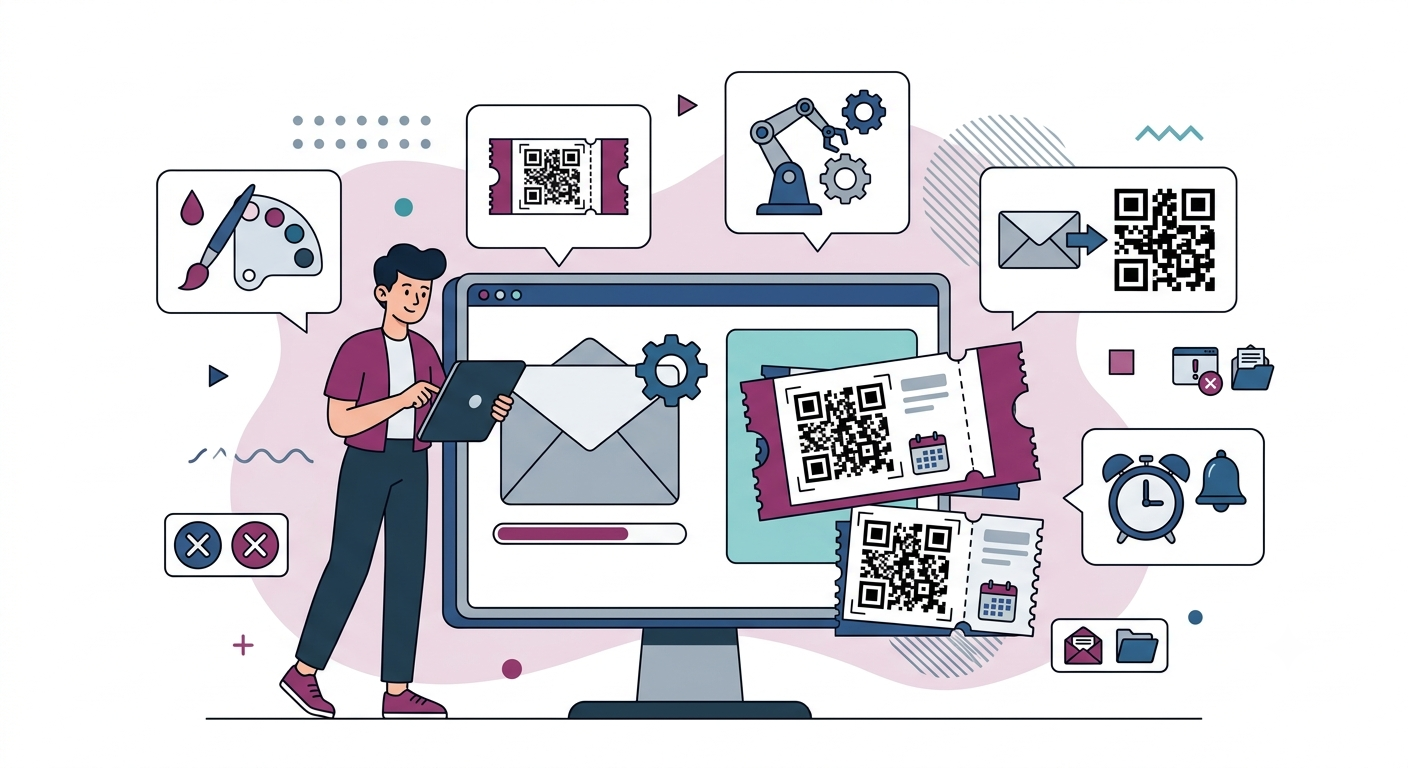
Why Email Ticket Delivery Is the Standard
Sending tickets via email is the most popular ticket distribution method today — and it’s easy to see why:
- Instant: Guests receive tickets within seconds of registering
- No cost: No printing, no postage, no labor for packing
- Easy to retrieve: Guests can find their ticket anytime in their inbox
- Easy to resend: If a guest loses the email, sending a new QR code takes seconds
- Rich content: Emails can include schedules, maps, instructions — more than paper tickets can hold
Components of a Ticket Email
1. Subject Line
The subject must be clear so guests can easily find it later:
- Good: “Your Ticket: Marketing Conference 2026 — June 15, 2026”
- Good: “[QRS] Registration Confirmed — Digital Business Seminar”
- Bad: “Confirmation” or “Event Ticket”
2. QR Code Ticket
The most important component. The QR code must:
- Display clearly, large enough (at least 200x200 pixels)
- Have white border around it (quiet zone) for easier scanning
- Include the code number as text below (for manual entry if scanning fails)
- Include instructions: “Present this QR code to staff at the entrance”
3. Event Information
- Event name
- Date and time (with timezone)
- Address (with Google Maps link)
- Attendee name
- Ticket type
4. Check-in Instructions
Don’t assume guests know what to do:
- “Open this email on your phone before arriving at the event”
- “Increase screen brightness for faster scanning”
- “If you don’t have a phone, print the QR code on paper”
- “Arrive 15 minutes early to avoid queues”
5. Action Buttons
- Add to Google Calendar / Apple Calendar: Attach .ics file
- Edit information: Link to update name, email, ticket type
- Cancel registration: Allow guests to self-cancel if they can’t attend
3 Ways to Send Tickets via Email
Method 1: Manual Sending
Create an email in Gmail/Outlook, attach the QR code as an image, send to each guest individually.
- Best for: Under 20 guests
- Pros: Free, 100% control
- Cons: Time-consuming, error-prone (sending wrong ticket, forgetting attachments)
Method 2: Mail Merge
Use Google Sheets + Gmail Mail Merge or Yet Another Mail Merge to send bulk personalized emails.
- Best for: 20-200 guests
- Pros: Partial automation, personalization (address each guest by name)
- Cons: Technical setup required, QR codes must be created separately and attached
Method 3: Event Management Platform
Use a platform like QRS — the system automatically generates QR codes and sends emails when guests register.
- Best for: Any size
- Pros: Fully automated, personalized, tracking (know if guests opened the email)
- Cons: Software cost
The Event Ticket Email Sequence
Don’t just send one email and forget. Design an email sequence to ensure guests remember and show up:
Email 1: Immediate Confirmation (after registration)
- QR Code ticket
- Complete event information
- “Add to calendar” button
- “Edit” and “Cancel” buttons
Email 2: Reminder 1 Week Before
- Reminder of time and location
- Detailed program
- Directions
- Request to re-confirm attendance
Email 3: Reminder 1 Day Before
- Reminder to open QR code on phone
- Increase screen brightness
- Weather forecast (for outdoor events)
- Emergency contact number
Email 4: Thank You (after the event)
- Thank you for attending
- Link to download presentation materials
- Event photos
- Invitation to register for the next event
Tips for Optimizing Ticket Emails
The QR Code Must Be Scannable
Common reasons QR codes fail to scan:
- Too small (under 150x150 pixels)
- No white border (quiet zone) around the code
- Email client compressing images (Gmail sometimes compresses inline images)
- Dark background or colored QR code (black on white works best)
Tip: Always test scanning the QR code in Gmail, Outlook, and Apple Mail before sending.
Emails Must Display Well on Mobile
Over 70% of guests open ticket emails on their phones. Ensure:
- QR code displays fully without horizontal scrolling
- Font large enough to read on small screens
- Buttons easy to tap with a finger (at least 44x44 pixels)
Don’t Send QR Codes as File Attachments
Many guests don’t know how to open attachments. Embed the QR code directly in the email body (inline image), not as a separate attachment.
Always Have a Backup for the QR Code
Always display the code number (text) below the QR code. If a guest can’t display the QR code (dead battery, cracked screen), staff can enter the code number manually.
Common Mistakes
Sending Email Without a QR Code
The email just says “You’ve registered successfully” but has no QR code. Where should the guest find their ticket?
QR Code Not Clear
QR code is blurry, too small, or displays incorrectly due to the email client. Guest arrives at the event but can’t check in.
No Reminder Emails
Many guests register 1-2 months in advance and forget by the event date. No reminders = high no-show rate.
No Self-Service Editing
Guests want to change their name or email but have no way to do it. They reply to the email — you receive hundreds of emails to process manually.
Conclusion
Sending tickets via email is the most effective ticket distribution method today when done right: clear QR codes, complete information, automated reminder sequence, and always having a backup. QRS automates the entire email ticket delivery process — from creating QR codes, sending confirmation emails, reminders, through to event-day check-in.
Found this helpful?
Explore more articles on this topic