Kiosk Mode: Self-Service Event Check-In
Kiosk mode turns a tablet at the door into a self-service check-in station: guests scan their own QR code, read the result on screen, and staff only handle the exceptions.
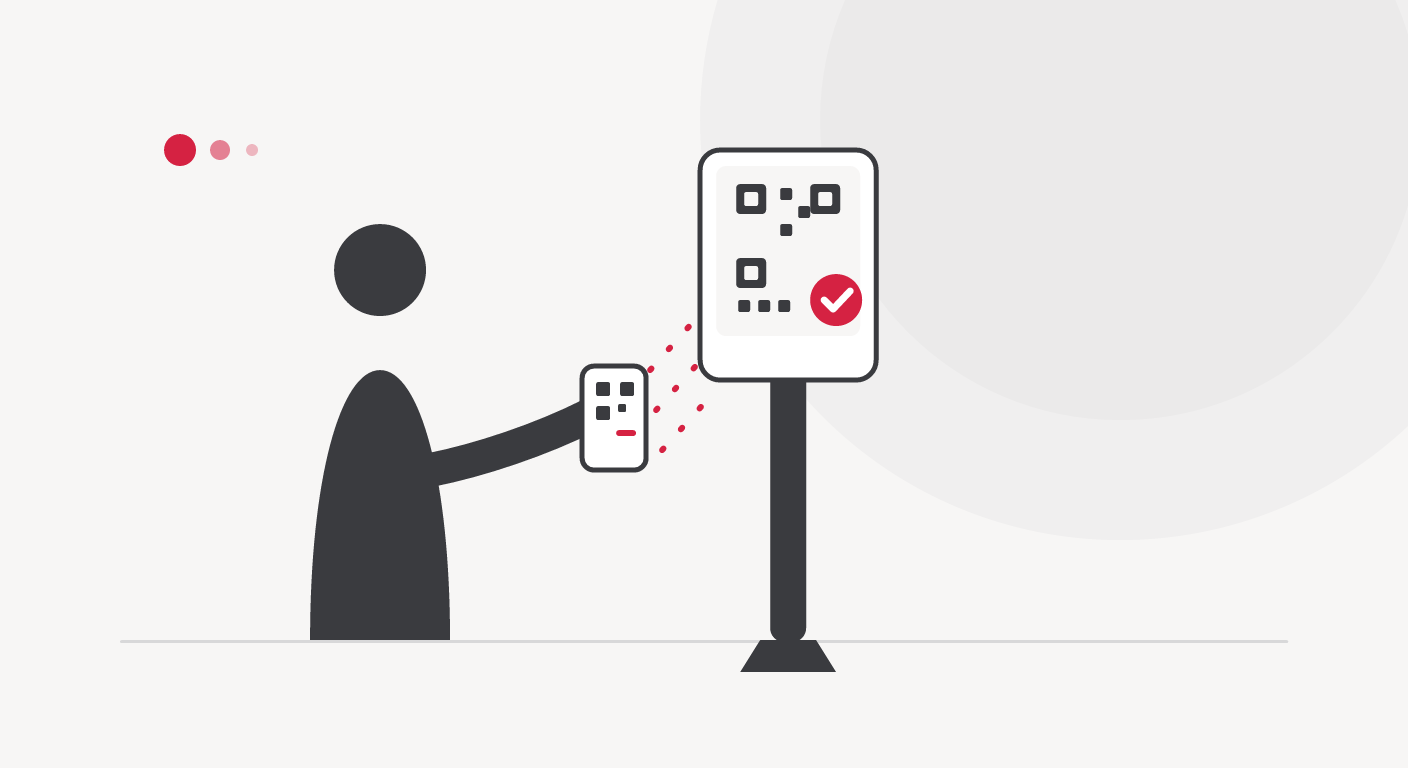
The Bottleneck Isn’t the Scanner — It’s the Person Holding It
Most check-in doors are slow for a very human reason: every scan needs a staff member to raise the device, read the screen, and nod. Doubling throughput used to mean doubling staff — until you remove the human from the loop.
Kiosk mode does exactly that. A phone or tablet mounted at the door becomes a self-service station: guests hold their QR code up to the camera, read the result on the big screen, and walk in. Staff don’t disappear — they step back and spend their attention on the scans that genuinely need a human.
How a Kiosk Runs
A kiosk is one of the scanner device types you register for an event. Staff sign in on the device exactly once and pick the event and door — from there the kiosk starts itself and runs for the rest of the event.
When nobody is scanning, the idle screen shows:
- The event name in large type with the door name below it (Gate A, VIP Area…) so guests can confirm they’re in the right line.
- A blinking “present your QR code” prompt.
- The number of guests checked in at this door, counting up from the first scan.
- A language toggle for Vietnamese / English.
- A yellow “Offline” badge if the device loses network — the kiosk keeps scanning and syncs when connectivity returns.
What One Guest’s Scan Looks Like
- The guest holds their QR code to the camera; an overlay helps them keep it in frame.
- The kiosk sends the code to the system and waits.
- The result appears with its own sound:
- Success — a confirmation screen with the guest’s name; two quick, rising high-pitch beeps.
- Warning (ticket already used, or valid but queued because the network dropped) — two short mid-tone beeps; the guest should wait for staff confirmation.
- Error (invalid ticket, wrong event, wrong door, door full) — one long, low tone; the guest is directed to the staffed lane.
- The result screen closes itself — 3 seconds for success, 5 for warnings and errors — and the kiosk is ready for the next guest. After 10 idle seconds it resets to the idle screen.
Result timings, the idle timeout, feedback sounds, and the input source are all configurable when you register the device. If a QR is too small or smudged to scan, guests tap manual entry on screen and type the ticket code. And if you use a separate barcode scanner plugged into the device, set the input source to keyboard — the scanner behaves like a keyboard and the kiosk picks it up automatically.
When to Use Kiosk Mode — and When Not To
| Situation | Use a kiosk? |
|---|---|
| Main door, heavy flow, most tickets are clean QR codes | Yes — offloads staff |
| VIP door, identity needs checking | No — staffed scanning |
| Many complex ticket types, guests need guidance | No — staffed scanning |
| Device mounted on a stand at a fixed spot | Yes |
| Handheld device moving between doors | No |
One nuance: a kiosk is a type of scanner device. Handheld phones and tablets keep working alongside it, independently — two kiosks plus three handhelds on the same door is a perfectly normal layout.
The Cases a Kiosk Handles on Its Own
| Situation | How the kiosk responds |
|---|---|
| Ticket already used | Warning, with the time and door of the previous check-in for comparison |
| Ticket belongs to another event | Error — the guest may be at the wrong door |
| Invalid / unknown ticket | Error |
| Device offline | Still scans, queues the check-in, and plays the warning sound so the guest knows to wait for confirmation |
| Outside event hours | All kiosks are blocked until the event is live |
The most valuable part isn’t speed — it’s honesty. Every outcome has its own color and sound, so guests know their result without staring at the screen. Nothing fails silently.
The Layout That Works: N Kiosks Plus One Staffed Lane
The most effective setup doesn’t replace staff entirely — it hybridizes:
- Kiosks carry the standard flow. Guests with clean QR tickets and no issues scan themselves in, unattended.
- Every warning and error diverts to the staffed lane. A kiosk rejection isn’t the end of the road — it’s a handoff. Staff receive these cases with the full context already on screen.
- Add badge printing if the event needs it: the guest scans, then collects a freshly printed badge at the door.
Because a kiosk takes over the full screen with no visible exit (so guests can’t accidentally tap out of it), staff leave the mode by tapping the event name five times within three seconds — the kiosk logs out and the device returns to the sign-in screen.
Conclusion
A kiosk doesn’t replace door staff — it replaces the most repetitive part of their job. For heavy doors with standard tickets, a self-service station that runs all event long frees your people for the cases that need a human: VIPs, complex tickets, exceptions. QRS supports kiosk mode with configurable result timings, feedback sounds, and offline scanning — set it up once before doors open, then let it run.
Found this helpful?
Explore more articles on this topic