Offline Event Check-In: Check In Guests Without Internet
How offline event check-in works: keep scanning guests without internet when the Wi-Fi drops — queued check-ins with accurate timestamps, automatic sync, and conflict handling.
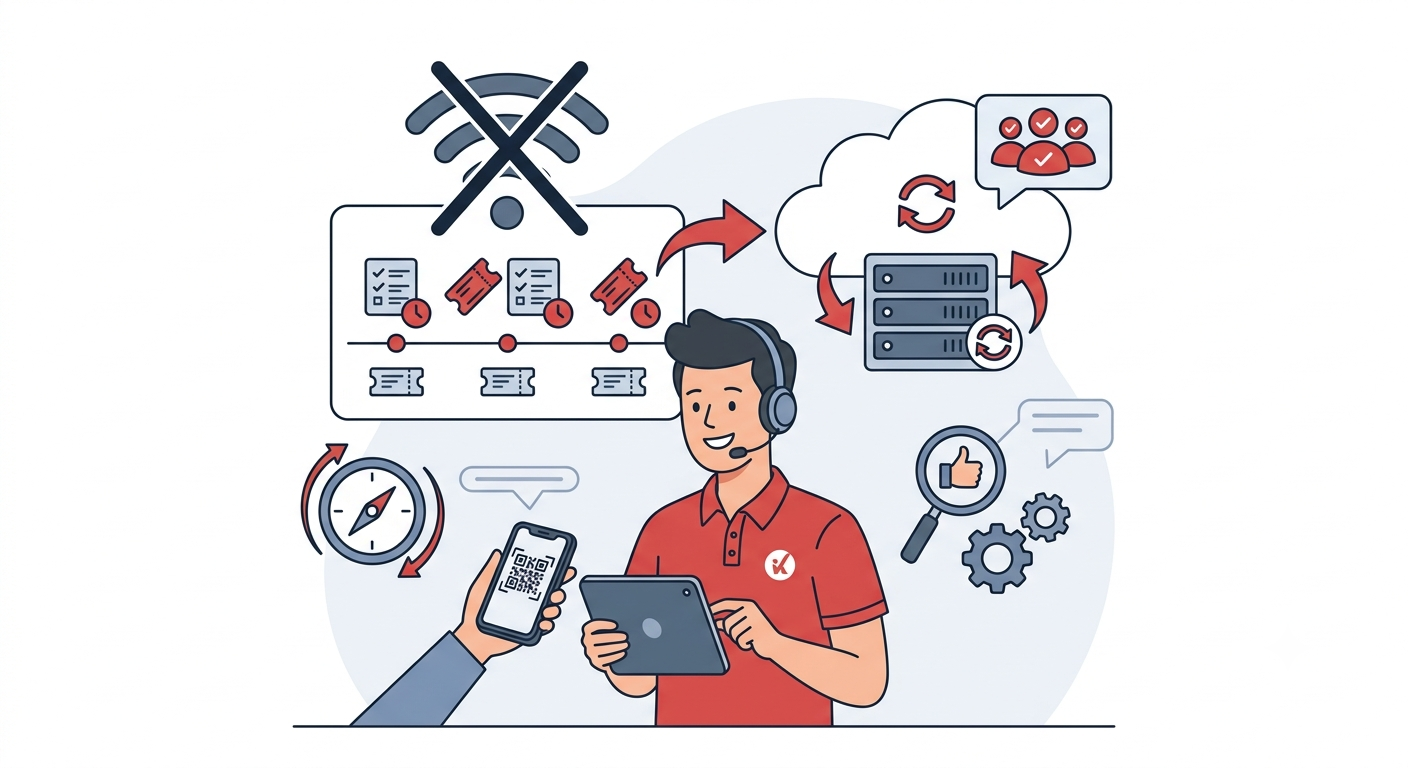
The Moment the Wi-Fi Dies at Your Door
It is 6:40 pm. The keynote starts in twenty minutes and a line of 300 guests snakes across the lobby. Then the venue router reboots itself — the same router the venue manager swore was “rock solid”.
Every organizer has lived some version of this. What separates a minor hiccup from a disaster is not whether your connectivity drops, but what your check-in system does in the seconds after. If the answer is “the scanner shows an error and staff start waving people in”, you lose your headcount, your audit trail, and your anti-fraud gate in one stroke.
Offline event check-in is the answer: the door keeps scanning, every action is saved on the device, and everything syncs when the network returns.
What Offline Event Check-In Must Guarantee
A serious offline mode is more than “don’t show an error”. It must guarantee:
- Every door action survives the outage. Check-ins, check-outs, and manual lookups all queue the same way — stored locally on the device’s browser storage, not a flimsy cache that evaporates on refresh.
- The guest experience doesn’t change. Staff see the same green guest card as online — name, tier badge, party info — marked with an amber “Offline” badge. The guest enters; the data catches up later.
- Timestamps stay honest. Each queued check-in carries the timestamp from the moment it was scanned, not when the network recovered. Your arrival analytics stay accurate.
- Sync is automatic. No one at a busy door has time to press a “sync” button. When connectivity returns, the queue drains itself in correct time order.
Scan by Scan: Offline at the Door
Here is what door staff actually see during an outage:
Successful scans show the normal card, plus a badge. The green result card appears with an amber Offline badge and a “queued locally” note. Staff reassure the guest — “your ticket scanned fine, it’s syncing” — and admit them. The line keeps moving.
Invalid tickets fail immediately, even offline. This is a deliberate design decision. Input errors — expired tickets, tickets from another event, an expired staff session — are shown in red on the spot and never queued. If the system stored them for later retry, the result would be identical every time and staff would loop forever. Real fraud gets caught at the door, not after the guests have gone home.
The camera view carries a connection indicator. Green when online, red when offline, with an amber warning badge once more than one scan is pending. Staff can tap it to see the pending count at any time.
When the Network Comes Back
Nothing. That is the point. The moment connectivity returns, every queued item is sent to the server in time order — even if the scanner screen slept through the reconnect (screen locked, tab switched), it re-checks and resumes the moment it wakes.
Two things are worth knowing:
- The dashboard lags by design. While the scanner is offline, the CMS dashboard only shows data that has reached the server. Don’t panic when the numbers don’t match — wait for the pending count to hit zero, then reconcile.
- The gates hold even during the outage. Queued scans are re-validated against the event’s live check-in window and schedule when they reach the server. A scan queued before the window closed but replayed after is kept in the sync report as a blocked item — not recorded as an admission.
When Two Doors Scan the Same Ticket
The classic edge case: the same ticket is scanned at two doors, both offline. When both devices reconnect, the system resolves it automatically:
- The earlier check-in is recorded normally — the guest was admitted.
- The later check-in is flagged as a conflict in the sync report, with both server time and device time so you can compare.
No data is lost, and no one is counted twice. Each queued check-in also syncs independently — one conflicting item never blocks the rest of the queue. Anything that repeatedly fails to sync lands in the scanner’s sync-issues sheet, where staff can retry or dismiss it.
Preparing for an Event with Bad Connectivity
- Know your venue before event day. Test Wi-Fi and cellular at every door during your site visit, not during the opening rush.
- Prefer one device per door. It makes conflict resolution trivial and keeps each queue small.
- Keep the roster feature on. Offline manual lookup works too — the device caches the guest roster while online, so staff can search by name or email and check someone in with no connection at all.
- Trust the queue, not the side gate. The worst outcome of an outage is staff abandoning the system “just for now”. With a working offline mode, there is never a reason to.
Conclusion
Connectivity will fail at the worst possible moment — plan for it, not around it. A check-in system with true offline mode keeps your door moving, your timestamps honest, and your data complete, no matter what the venue router decides to do. QRS queues check-ins, check-outs, and manual lookups locally with automatic sync and conflict resolution, so a network outage never becomes a door meltdown.
Found this helpful?
Explore more articles on this topic