Scanner Device Management: From Registration to Health Monitoring
Register scanner devices, hand staff one-time QR login cards, assign doors, and monitor device health on event day so no door silently stops recording guests.
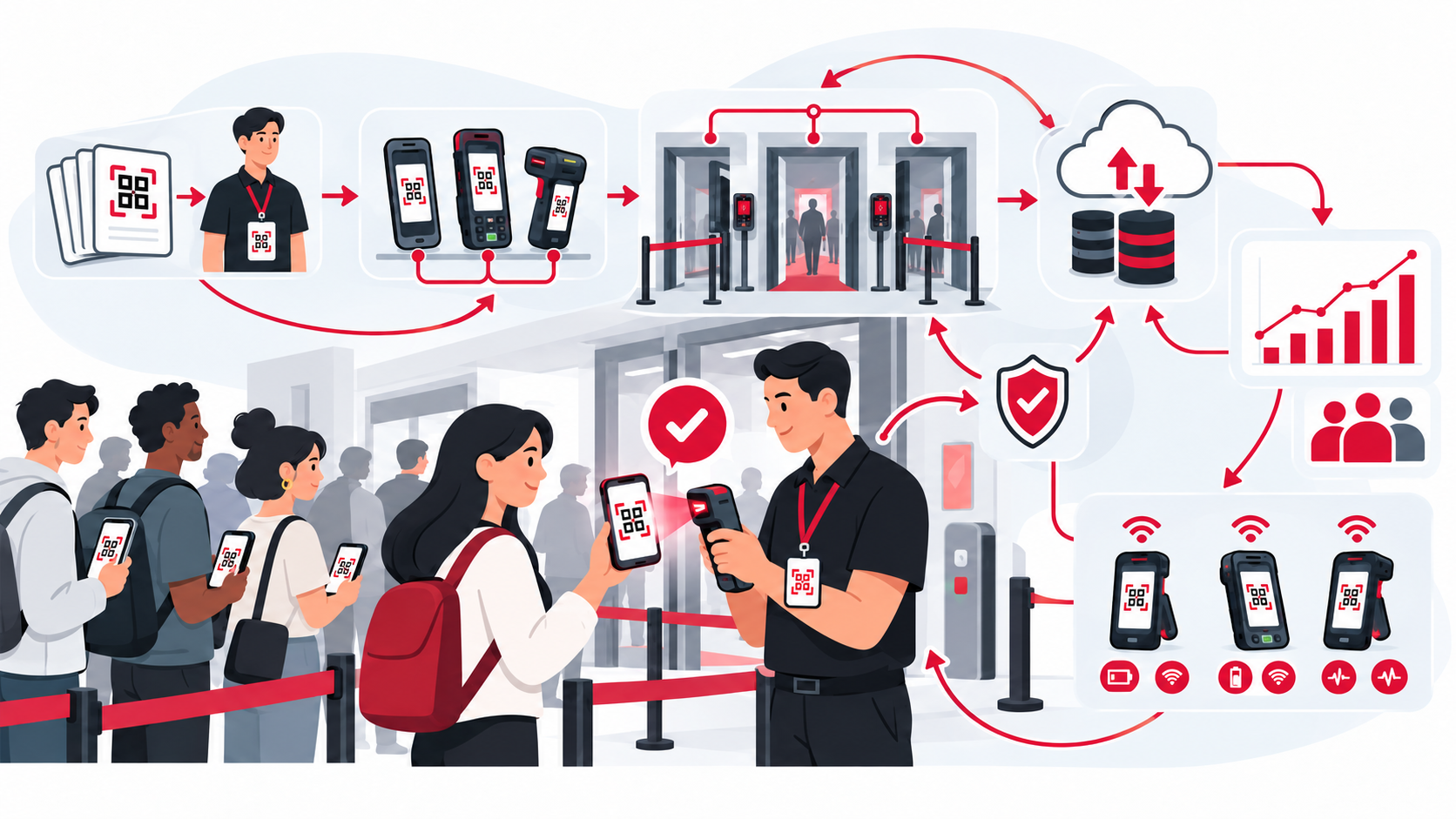
The Door Is Still Working — and the System Stopped Recording It
This is event day’s quiet nightmare: door B is still admitting guests, staff are still smiling, the screen is still lit — but no check-in has reached the system for forty minutes. The device lost network, or the app closed itself, and nobody at the door knows.
With one or two scanners, you can glance at each one. With ten scanners across five doors, nobody can glance fast enough — at that scale you’re not managing “a phone”, you’re managing a fleet. And a fleet needs two things: a roster (who is what, where) and health (which one is dozing off).
Registration: Give Each Device an Identity
Every scanner is registered on the event management page with three pieces of information:
- Device name — use a location — number convention (“Main door — tablet 1”, “Lobby B kiosk”, “Ann’s handheld”) so post-event reports map back to each device.
- Device type — phone / tablet, desktop at a counter, dedicated handheld scanner, or self-service kiosk.
- Assigned door — the door this device will scan; can be left empty and set later.
Preparing many devices? Bulk add takes a pasted list of names (one per line) and registers them all at once — you then go back to set type and door per device. The top of the page always shows the fleet’s three vital signs: devices currently on, total check-ins scanned, and pending sync count.
Password-Free Sign-In for Staff
Door staff don’t need an account and password. Each registered device carries two keys:
- A 6-character registration code — shown right on the device card, typed by hand on the scanner app’s sign-in screen.
- A QR login code — one-time, expires after 4 hours; scanning it drops staff straight into that device’s scanning session.
From that QR code you can open a large dialog (scannable from across the room, with its remaining time), download a print-ready PNG to post at the door, or copy the link to send by message. And the Print QR codes button produces a two-column sheet — 3.5 × 2 inch cards for every active device, each showing the device name, door, registration code, and expiry — cut them out and stick them on devices or hand them to staff.
The field-tested tip: print this card set during setup. If the app can’t open the link, staff still type the 6-character code by hand — a door is never stuck because of one QR.
Door Assignment Without Signing In Again
A device with an assigned door gets every scan attributed to the right door, reports split by door and by device, and staff who sign in with the device’s QR see their door immediately. Each door takes up to 50 scanners.
The detail that matters most: a connected scanning device re-checks its assignment about every 30 seconds, so reassignment does not require signing out and in again. Wait for the new door name to appear before scanning. An offline device cannot receive the new assignment until connectivity returns.
Three Health States and What They Really Mean
On event day, every device carries a status label:
| State | Meaning |
|---|---|
| Online | Connected and reporting check-ins recently |
| Weak | Still running, but the connection is unstable — watch it |
| Offline | No connection, switched off, or the app has exited — the dashboard is not receiving current updates. If the app is still running with offline data prepared, scans may be queued on the device; a powered-off device cannot scan |
Alongside each device are two diagnostic numbers: last seen (“just now”, “5 minutes ago”, “2 hours ago”) and pending sync count — a device offline still scans (queued locally), so a rising number means guests have entered whom the dashboard can’t see yet. The three summary tiles at the top aggregate the whole fleet: online / total check-ins / pending sync.
Four Signs a Door Is Silently Dropping Check-Ins
- The device shows Weak or Offline.
- Last seen is tens of minutes ago while the event is still running.
- Pending sync keeps climbing without coming back down.
- That door’s total check-ins are far below the other doors’ at the same moment, despite a long queue.
Spot any of these — call that door immediately. Don’t wait until the event ends to find out.
Handling a Sick Device on the Spot
- Device offline — call the door: reopen the app, sign in again with the registration code, check Wi-Fi or mobile data. Once back online, queued check-ins are sent for synchronization. Review pending or rejected items rather than assuming every queued admission has been accepted.
- Pending sync keeps rising — ask them to move the device somewhere with better signal or switch networks; watch the number fall back toward zero.
- Don’t power off a device with stuck data. The queued check-ins live inside the device; switching it off doesn’t lose them but interrupts the sync. If repeated attempts fail, contact support to recover them.
- Broken device or staff leaving their post — move the person to another registered device; everything follows the device, not the person.
- Lost device — flip its switch off immediately so nobody can sign in on it. The system warns you first if that device still has pending check-ins.
When Not to Worry
Not every yellow dot is an incident. A few pending check-ins for a few seconds that return to zero means the device sends in small batches. A device that blips to Weak and back is a flapping network — no intervention needed while pending sync is zero. And offline before doors open is normal — staff simply haven’t signed in yet. The only real requirement: every device reads online before the first guest walks in.
Before opening, register the devices, confirm their assigned doors, test a valid and invalid ticket, and check that offline preparation is complete. Keep devices charged and identify who will respond to a rising pending count. See door capacity and ticket access control for a sample door setup.
Conclusion
Big events don’t fail from a shortage of scanners — they fail when one scanner quietly stops recording and nobody notices. Registering each device, printing login cards, assigning doors, and watching three health states is all the “maintenance” a scanner fleet needs. QRS supports bulk scanner registration, 4-hour one-time QR login cards, door reassignment without signing in again, and real-time device health monitoring — so every admission gets recorded, at every door.
Found this helpful?
Explore more articles on this topic